Agents log in using their mobile number and a password. Agent accounts are created on the Velociti web app. After six unsuccessful attempts at logging in, the login form should be disabled for 5 minutes. The agent can try to login after the 5 minutes have elapsed. After successfully logging in, the user will be taken to the Activities screen.
The phone number input field displayed on the login screen should show numbers only and not the full keyboard.
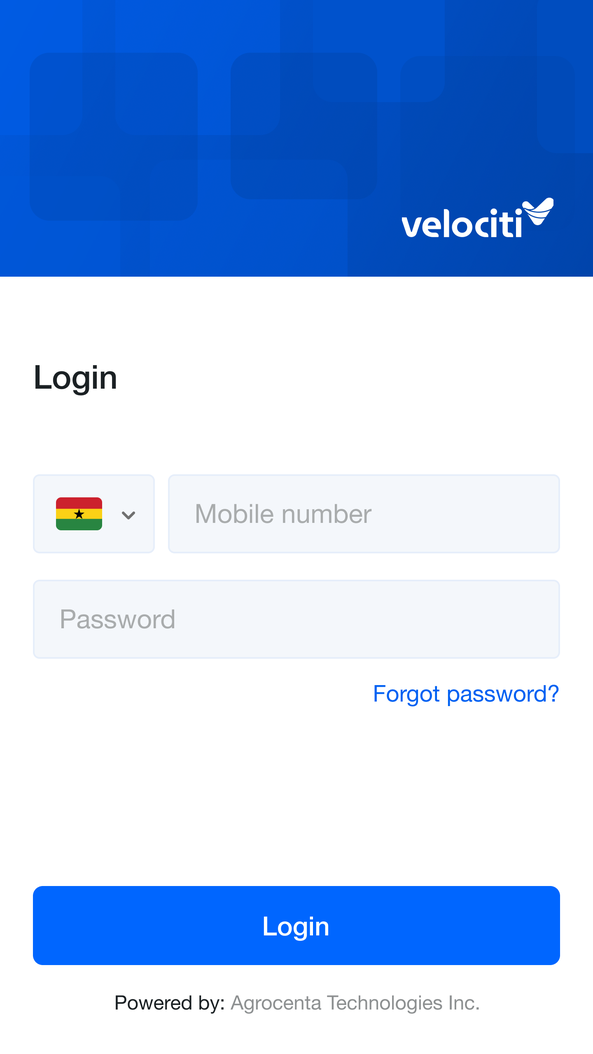
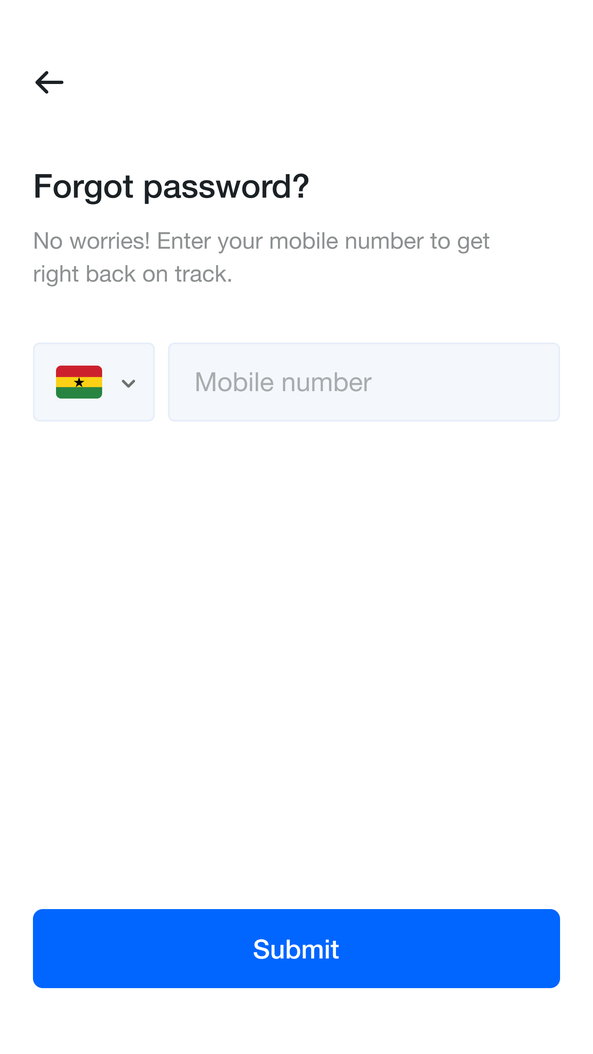
Clicking the Forgotten Password link brings the agent to a screen where they are required to enter the mobile number they login with. If the mobile number exists for an agent, a text message is sent to the number with a temporal random 6 alphanumeric password. The agent should be able to login with their mobile number and this temporal password BUT must be required to update their password to something they can remember immediately after logging in. The agent CANNOT perform any other activity until they have updated their password.
If the mobile entered does not exist, this message should be displayed on the password reset screen to the agent. “The mobile number you entered was not found”.
If mobile was found, display, “Please log in with the temporal password sent to 0244xxxxxx.
Eventhough the app is offline first, the password receovery process requires the agent to be online for the text messages to be sent.
In This Document